Dealing with multiple PDF documents can quickly become a nightmare. Whether you are combining invoices for accounting, assembling a portfolio, or organizing research papers, having a reliable way to merge PDFs is an essential productivity skill.
In this guide, we will walk you through the easiest and most secure way to combine multiple PDF files into one using the free Vyrobox Merge PDF tool.
The Security Problem with PDF Mergers
Most online PDF tools require you to upload your sensitive documents to their servers. This poses a massive security risk:
- Who has access to your files?
- How long are they stored?
- Are they being scanned for data?
The Vyrobox Merge PDF tool solves this by performing the merge entirely within your browser using modern WebAssembly technologies. Your sensitive files never touch our servers.
Step-by-Step Guide to Merging PDFs
Step 1: Gather Your Files
Before starting, ensure all the PDF files you want to combine are saved in an easily accessible folder on your computer.
Step 2: Upload to Vyrobox
Navigate to the Merge PDF tool. You can either:
- Click the upload area to open your file browser.
- Drag and drop your selected files directly onto the webpage.
Step 3: Rearrange the Pages
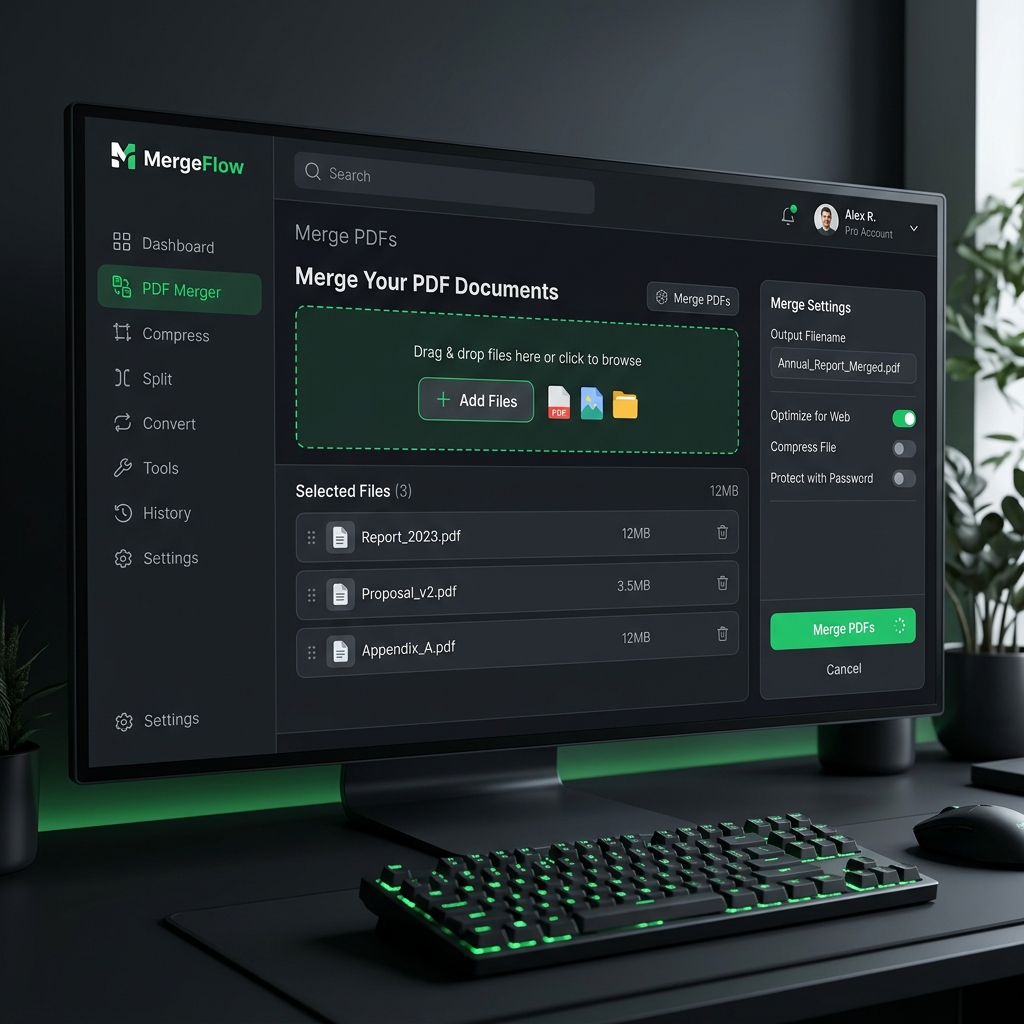
Once your files are loaded, Vyrobox displays a visual interface where you can drag and drop the files to rearrange their order. The file at the top will be the first section of your new PDF, and the file at the bottom will be the last.
Step 4: Click Merge
Hit the Merge PDFs button. Because the processing happens locally on your machine, it should only take a few seconds, even for large files.
Step 5: Download Your New PDF
Your newly combined PDF will automatically download to your computer, ready to be shared or archived.
Best Practices for PDF Management
- Consistent Naming: Always use a consistent naming convention for your merged files (e.g.,
YYYY-MM-DD_Invoice_Bundle.pdf). - Check File Sizes: Merging many large, image-heavy PDFs can result in a massive file. If your merged PDF is too large to email, consider using our [Compress PDF] tool afterward.
- Flatten Forms: If you are merging PDFs containing fillable forms, ensure they are flattened before merging to prevent data corruption.
By utilizing secure, browser-based tools, you can supercharge your document workflow without ever compromising on privacy.