Have you ever tried to email a massive contract or school assignment, only for your email provider to reject it because the file was too large? In most real-world scenarios, you do not need an entire document. You simply need to extract a few specific pages to send, upload, or print.
For years, professionals relied on desktop software like Adobe Acrobat to handle these tasks. While professional software is incredibly powerful, it is often unnecessarily complicated for everyday users. Today, the smartest solution in digital document management is to divide PDF documents online.
By using a browser-based PDF tool, you instantly isolate the exact pages you need without downloading software or paying subscription fees. In this practical guide, you will learn why online PDF splitters provide a superior workflow, how to separate PDF pages securely, and discover actionable tips for managing your digital files efficiently.
Quick Answer: Can I split a PDF without Adobe? Yes. You can instantly extract PDF pages without Adobe by using a free, secure browser-based tool like Vyrobox. Simply upload your document, select the page range you want to extract, and download your new PDF immediately. No installation or registration is required.
Key Takeaways
- No expensive software subscriptions required.
- Free, browser-based extraction works instantly.
- Full cross-platform support including mobile devices.
- Standard HTTPS protocols secure your file transfers.
- Zero loss of original formatting or visual quality.
- Automatic server deletion protects your document privacy.
What Does Splitting a PDF Mean?
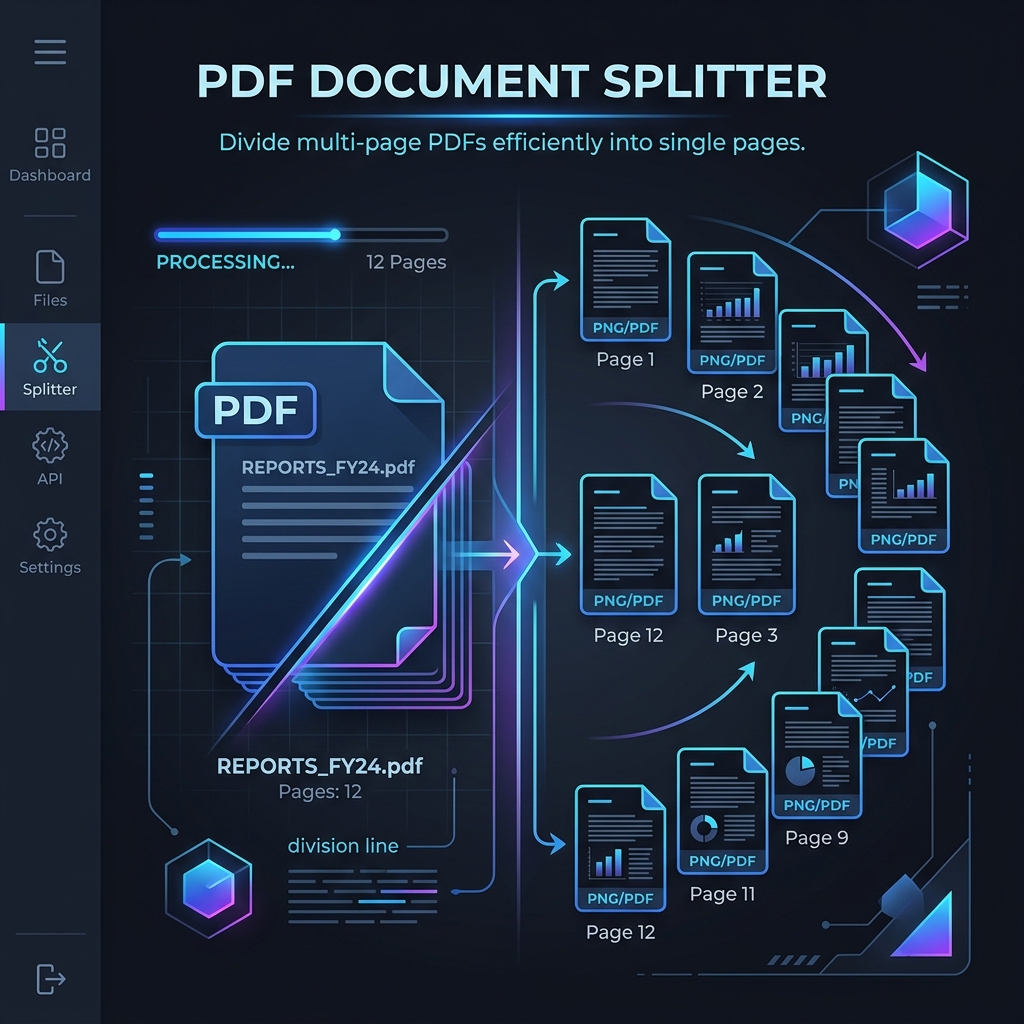
What is PDF splitting? PDF splitting is the process of taking a single, multi-page document and dividing it into smaller, separate files. This allows you to extract selected pages, remove unwanted sections, or break a massive document into individual pages for easier sharing and organization.
In everyday office work, this is a lifesaver. HR professionals frequently receive 50-page employee onboarding packets. However, they typically only need to file the two signed tax forms. Splitting the document allows them to extract those specific pages and confidently discard the rest.
This process grants you complete control over your PDF page organization. You can separate individual pages, divide a document in half, or extract a custom page range. You retain exactly what you need while strictly preserving the original layout and quality.
Why People Avoid Adobe
Adobe created the PDF format in 1993, and Acrobat has been an industry heavyweight ever since. However, many users actively look for alternative ways to manage their files. The core reasons come down to price, speed, and usability.
To be fair, Adobe Acrobat remains the gold standard for advanced document redacting and professional color management. But for simple page extraction, it introduces unnecessary hurdles.
The Subscription Model
Adobe operates on a premium subscription model. Professional designers readily justify a monthly fee, but casual users cannot. If you only need a free PDF splitter to manage university assignments twice a month, paying for a premium subscription makes little financial sense.
Heavy Software Requirements
Acrobat requires a massive desktop installation. It takes up significant hard drive space and consumes system resources. If you are rushing to upload a visa application before a government portal times out, the last thing you want is a forced software update blocking you from managing your files.
Unnecessary Complexity
Professional software includes extensive features for editing, indexing, and digital signatures. This creates a cluttered interface. When you simply want to remove pages from PDF files, navigating complex menus slows down your workflow. Browser tools eliminate this friction entirely.
Benefits of Splitting PDFs Online
Why use an online PDF splitter? An online PDF editor allows you to manage documents directly in your web browser without installing software. It is completely free, lightning-fast, and compatible across all operating systems. Users avoid expensive subscriptions while maintaining high-quality document organization.
[!NOTE] Did You Know? Adobe created the PDF format, but it was released as an open ISO standard in 2008. This open standard is the exact reason modern web browsers can now natively render and manage PDFs securely without requiring third-party plugins.
Flawless Mobile Support
When working remotely, you might only have your smartphone. Online tools champion browser-based productivity, allowing you to extract the necessary pages of a project report right from your mobile device. There is no need to wait until you return to your desktop computer.
Zero Cost and No Registration
Premium web tools respect your time and privacy. Anyone can upload, process, and download their files without entering payment details or verifying an email address. This ensures your inbox remains free from marketing emails.
When Should You Split a PDF?
Professionals search for PDF page splitters to solve specific, practical problems. Instead of struggling with massive files, smart digital document management requires isolating precisely what you need.
Here are the most common situations where separating pages becomes absolutely necessary:
| Situation | Why Split the PDF |
|---|---|
| Resume & Portfolio | Extract just the resume page for strict job application portals. |
| Visa Application | Submit only the required passport ID page without extra forms. |
| Tax Filing | Separate individual W-2 statements from a massive yearly scan. |
| University Studies | Isolate a single chapter from a 1,000-page digital textbook. |
| HR Onboarding | Save only the signed tax documents from a 50-page packet. |
| Business Contracts | Share only the signature page with a client for faster turnaround. |
| Email Attachments | Bypass the standard 20MB-25MB attachment limits enforced by major email providers. |
Step-by-Step Guide: How to Split PDF Online
How to split PDF online?
- Open a secure online PDF splitter.
- Upload your PDF document.
- Enter the specific page range you wish to extract.
- Choose your preferred extraction method.
- Click the split button to process the file.
- Download your new, smaller PDF immediately.
Here is exactly how to execute this using a browser-based PDF tool:
Step 1: Open the Online Tool Navigate to the PDF splitter website. The clean interface ensures you will not get lost in confusing menus.
Step 2: Upload Your File Drag and drop your document directly into the browser. The platform utilizes secure HTTPS transfer protocols to ensure your data uploads safely.
Step 3: Select the Page Range Review the visual preview of your document. Type the specific pages you want to keep, such as "1-5, 8, 12". This flexibility allows you to extract selected pages with precision.
Step 4: Process the Document Click the split button. Cloud servers handle the heavy lifting instantly. Your computer will not freeze or slow down during this process.
Step 5: Download and Organize Save the newly created files to your device. If you accidentally separate too many pages, you can easily utilize a Merge PDF tool to seamlessly combine them again later.
Is Splitting PDFs Online Safe?
Professionals often hesitate to upload medical reports or legal documents to web platforms. However, processing documents online is incredibly safe if you use a trusted platform with transparent security measures.
Secure File Transfers
Reputable platforms utilize standard HTTPS protocols to encrypt data during transfer. This ensures that third parties cannot intercept your files while they travel from your device to the processing server.
Automatic Server Deletion
Privacy protection is a top priority. The system automatically clears your original and processed files from the servers shortly after processing. Your documents are never stored indefinitely.
[!WARNING] Security Tip: Before uploading highly sensitive government tax forms to any website, verify that their privacy policy explicitly outlines secure transfers and automatic file deletion policies.
Automated Processing
Algorithms handle the entire extraction process automatically. No human ever opens, reads, or reviews the contents of your private invoices or business contracts.
Helpful Tips Before Splitting PDFs
Following established best practices ensures your document workflow remains organized and efficient. Apply these tips before you start extracting pages.
[!TIP] Expert Tip: When dealing with massive documents, always verify the digital page numbers in your browser viewer before splitting. The physical page numbers printed on the document frequently do not match the digital index.
Keep Original Backups Never delete your master document until you have fully verified that your split files contain exactly what you need. Keeping original backups prevents data loss.
Leverage OCR for Scans If you split scanned PDF files, the resulting text behaves like an image. Use an Optical Character Recognition (OCR) tool afterward if you need to search, edit, or highlight the text.
Convert to Standard Images Sometimes a client just wants to view a document page on their phone without opening a dedicated reader. You can use a PDF to Image tool to turn your split pages into accessible JPGs. Conversely, if they send you image files of contracts, you can use a JPG to PDF tool to standardize them into a single document.
Check Document Passwords Verify your file is not locked before uploading. You cannot manipulate password-protected PDFs unless you possess the password to unlock the document locally first.
Common Mistakes to Avoid
Even seasoned professionals occasionally make errors when managing digital documents. Avoid these common pitfalls to save time.
[!CAUTION] Common Mistake: Extracting one page from a 100MB file does not guarantee a 1MB result. If that single page contains an uncompressed photograph, run it through a Compress PDF tool afterward to ensure it meets standard email limits.
Utilizing Outdated Browsers
While browser PDF tools are highly compatible, attempting to run them on an obsolete browser version can cause errors. Keep Chrome, Safari, or Firefox updated for a flawless experience.
Closing the Tab Prematurely
Patience is essential when uploading massive files on a slow connection. Do not close the browser tab until the download is fully complete, or you will interrupt and corrupt the process.
Split PDF Online vs Adobe Acrobat vs Smallpdf
How do free web tools compare to premium subscriptions? This objective breakdown evaluates popular options to help you determine the right fit for your document workflow.
| Feature | Browser-Based Splitters | Adobe Acrobat Pro | Smallpdf |
|---|---|---|---|
| Price | Free | Premium Subscription | Paid Subscription (Pro) |
| Installation | None (Browser-based) | Heavy Desktop App | Browser-based |
| Cross-Platform Support | Windows, Mac, Linux, Mobile | PC, Mac, App | Windows, Mac, Linux, Mobile |
| Ease of Use | Extremely Intuitive | Steep Learning Curve | Very Simple |
| File Limits | Generous Allowances | Unlimited | Restricted on Free Tier |
| Processing Speed | Instant Cloud Processing | Depends on Local Hardware | Fast Cloud Processing |
| Registration Required | No | Yes (Adobe ID) | Yes (For Pro Features) |
| Privacy (Auto-Deletion) | Yes | Cloud Storage Sync | Yes |
| Offline Support | No | Yes | Yes (Desktop App Only) |
| Best Suited For | Fast, secure daily tasks | Advanced editing & redacting | Casual users willing to pay |
For the vast majority of users, a free, browser-based solution provides everything necessary without imposing restrictive paywalls or forcing software installations. However, if your job requires daily offline editing, complex form creation, or secure redaction, investing in professional desktop software like Adobe Acrobat remains a valid and necessary choice.
Frequently Asked Questions
Can I split a PDF for free?
Yes. High-quality online platforms allow you to extract PDF pages completely free of charge without requiring a credit card or subscription.
Does splitting change formatting?
No. Extracting pages strictly preserves the original formatting, fonts, and layout. The visual quality remains completely identical to the master document.
Can I undo splitting?
You cannot automatically "undo" the action once the file is split. However, you can easily recombine the separated files using a Merge PDF tool.
Can I split scanned PDFs?
Yes. A scanned document functions exactly like a standard PDF. You can isolate and extract specific scanned pages without any issues.
Can I split encrypted PDFs?
You can only split an encrypted document if you possess the password. The processing server must be able to read the file before it can divide it.
What browsers support online PDF splitters?
All modern browsers natively support these tools. You can flawlessly use Google Chrome, Mozilla Firefox, Apple Safari, or Microsoft Edge.
Can I split PDFs on iPhone?
Absolutely. Because the tool operates entirely within the web browser, you can upload and extract files directly from your iPhone using Safari.
Can I split PDFs on Android?
Yes. Android users can access the exact same features using Google Chrome without installing any dedicated mobile applications.
Is quality preserved?
Yes. The splitting process only separates the data; it does not compress or alter the resolution of the text or images within the document.
Can I merge them later?
Yes. If you change your mind, you can upload the split files into a merger tool and combine them back into a single document instantly.
Is there a page limit?
While most free platforms impose generous file size limits, you can generally separate documents containing hundreds of pages without hitting a wall.
Can I extract only one page from a PDF?
Yes. You can isolate a single page—like the signature page of a contract—and save it as an independent file.
Can I convert the split pages to images?
Yes. After splitting your document, you can run the new file through a PDF to Image converter to generate easily shareable JPG or PNG files.
How do I make the split file even smaller?
If your extracted document is still too large for standard email attachments, you can run it through a Compress PDF tool to optimize the file size.
Why did browser PDF tools become popular?
PDF is an international ISO standard. As web browsers became more powerful, they gained the native ability to render these standard files securely in the browser, eliminating the need for bulky plugins.
Can I extract non-consecutive pages?
Yes. You can easily type a custom range, such as pages 1, 4, and 7, and extract them together into a new, consolidated document.
Related Articles
Looking to optimize your document workflow even further? Check out these helpful guides:
- How to Merge PDFs Online Safely and Securely
- PDF to JPG vs PDF to PNG: Which Format Should You Choose?
- How to Convert PDF to Images in Seconds
- Best Free Image Compressor
- How to Compress Images Without Losing Quality
Conclusion
Managing digital documents should empower your workflow, not slow it down. Whether you are submitting a crucial visa application, organizing complex tax forms, or simply trying to email a business contract, knowing how to split PDF online is an essential modern skill.
You no longer need to rely on expensive, resource-heavy software to perform everyday document tasks. By utilizing a secure, browser-based tool, you extract exactly what you need instantly. This approach saves valuable hard drive space, respects email attachment limits, and maintains absolute control over your digital organization.
The next time you face a massive document and only need a few pages, skip the complicated installations and expensive subscriptions. Try a free online PDF splitter today and experience how fast and effortless document management can truly be.